POPULAR COURSES
Master Programs



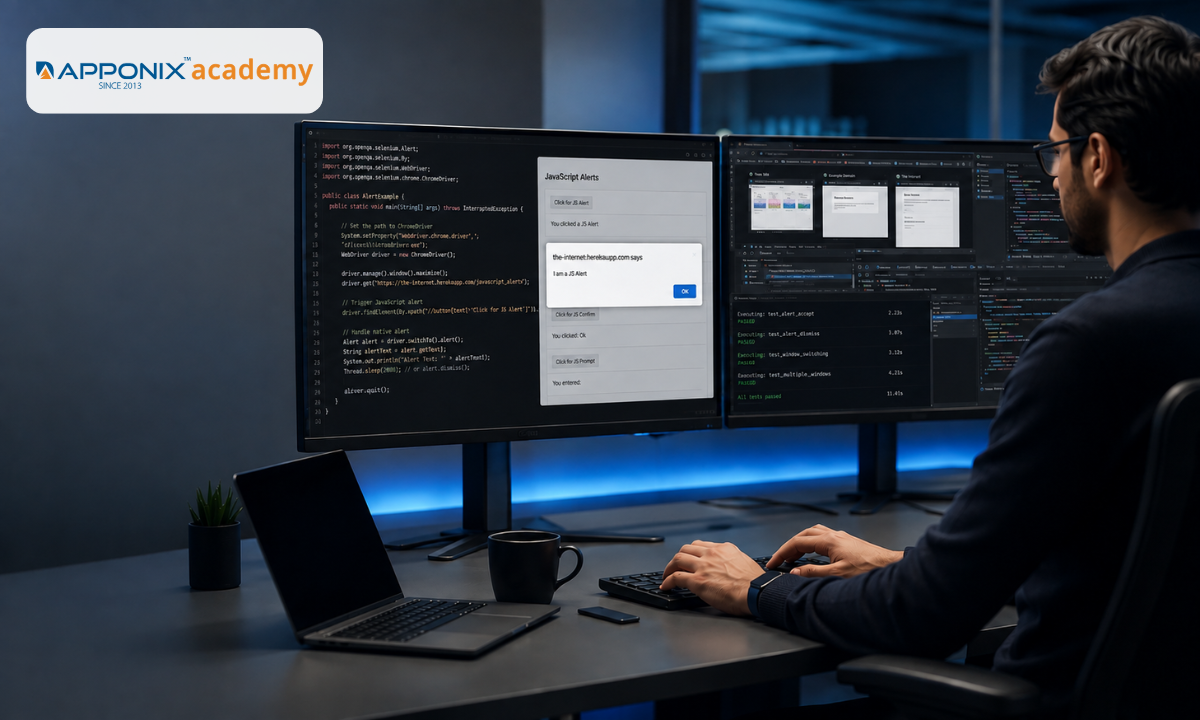
Table of contents:
|
1. Decoding Native JavaScript Dialogs: When the Alert API Applies
|
|
2. Multi-Window & Tab Navigation: When Window Handles Are Mandatory
|
|
3. Technical Comparison Matrix: JS Alerts vs. Window Handles vs. HTML Modals
|
|
4. Practical Implementation Patterns & Synchronization Best Practices
|
|
5. Why Choose Apponix Technologies for Your Automation Career? |
|
6. Conclusion |
Mastering alert handling in selenium is essential for test automation engineers building resilient end-to-end test suites. When learning test automation at a leading Training Institute in Bangalore, software testers frequently encounter modern web applications that trigger popups, security confirmation dialogs, and secondary browser tabs during user interactions.
However, misinterpreting the underlying UI implementation of a popup often leads to flaky test scripts and unexpected runtime exceptions. Automation engineers frequently struggle to differentiate between browser-native JavaScript dialogs and secondary browser windows or tabs. Attempting to switch window handles on a native JavaScript alert or calling the alert API on a child browser tab inevitably crashes execution.
Understanding the architectural differences between how Selenium WebDriver manages driver focus, thread blocking, and browser window contexts is the key to writing stable, maintainable test automation scripts.
Decoding Native JavaScript Dialogs: When the Alert API Applies
Native JavaScript dialogs are popups triggered directly by the browser engine rather than rendered inside the HTML Document Object Model (DOM).
When a web application executes a command like window.alert(), window.confirm(), or window.prompt(), the browser halts the JavaScript thread and freezes page interactions until the user responds.
Effective Selenium alert handling requires understanding that as these dialogs sit outside the HTML DOM tree, you cannot inspect their elements using Browser Developer Tools (F12) or locate them using standard locators like XPath or CSS selectors.
The Three Native JavaScript Dialog Types
-
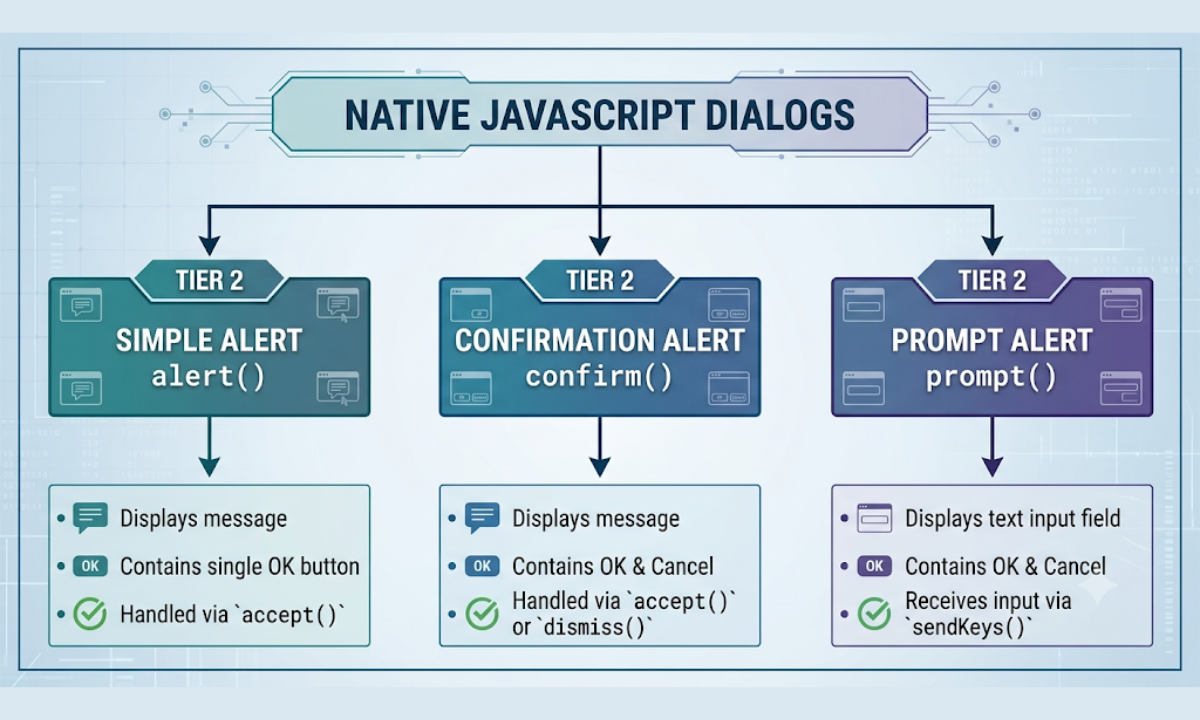
Simple Alerts (alert()): Informational dialogs containing a text message and a single OK button. They require user acknowledgment before execution can resume.
-
Confirmation Dialogs (confirm()): Decision dialogs containing a text message alongside OK and Cancel buttons, used for destructive actions like account deletion.
-
Prompt Dialogs (prompt()): Interactive input boxes requiring the user to type text before accepting or dismissing the popup.
Key Methods of the Selenium Alert Interface
To interact with native popups, Selenium WebDriver provides the Alert interface via driver.switchTo().alert(). Once driver focus shifts to the active alert, you can execute four primary operations:
-
accept(): Simulates clicking the OK or Confirm button, closing the dialog and resuming page thread execution.
-
dismiss(): Simulates clicking the Cancel button (or pressing Esc), closing confirmation or prompt dialogs without applying changes.
-
getText(): Captures and returns the text message string displayed inside the alert box for assertion checks.
-
sendKeys(String text): Types string data into the input field of a JavaScript prompt() dialog before accepting.
A critical architectural advantage of native alerts is that once an alert is accepted or dismissed, driver focus automatically reverts back to the original HTML document. Unlike window switching, no manual context resetting is necessary.
Multi-Window & Tab Navigation: When Window Handles Are Mandatory
While native JavaScript alerts present lightweight, thread-blocking modal dialogs, real-world web applications frequently trigger entirely new browser windows or child tabs. Scenarios such as clicking a "Terms of Service" link (target="_blank"), launching a third-party OAuth authentication popup (e.g., "Sign in with Google"), or generating a PDF report open separate browser contexts.
Unlike native alerts, these secondary windows possess their own complete, inspectable HTML Document Object Model (DOM).
Mastering Window switching in Selenium becomes mandatory when handling multi-tab workflows, as operating systems treat every tab as an isolated browser window with its own distinct DOM context.
Understanding Window Handles in Selenium WebDriver
Selenium identifies distinct browser windows and tabs using a unique alphanumeric identifier called a Window Handle (e.g., CDwindow-A1B2C3D4E5F6). This handle acts as a memory pointer assigned by the browser driver during session initialization.
WebDriver provides two essential methods to manage and track these session handles:
|
Method |
Return Type |
Architectural Purpose |
Common Use Case
|
|---|---|---|---|
|
driver.getWindowHandle() |
String |
Retrieves the unique handle of the currently focused browser window or tab. |
Storing the original (parent) window ID before triggering an action that opens a new tab. |
|
driver.getWindowHandles() |
Set<String> |
Returns an ordered set of handles for all open windows and tabs associated with the driver instance. |
Iterating through all active tabs to locate and switch focus to a newly opened child window. |
Anatomy of a Multi-Window Execution Flow
Unlike native alerts where accepting or dismissing automatically returns execution focus to the root document, closing a child browser tab leaves WebDriver pointing to a dead context. Attempting to interact with elements on the main page without explicitly switching back triggers a NoSuchWindowException.
-
Step 1: Parent Window Active (Current Handle: Parent_ID | Action: Click link with target="_blank")
-
Step 2: Child Window Opens (Active Windows: { Parent_ID, Child_ID } | Driver Focus: Still stuck on Parent_ID!)
-
Step 3: Explicit Window Switch (Command: driver.switchTo().window(Child_ID) | Driver Focus: Now on Child_ID)
-
Step 4: Close & Return Switch (Command: driver.close() ➔ Closes Child_ID | Command: driver.switchTo().window(Parent_ID))
-
Step 5: Resume Parent Operations (Driver Focus: Safely back on Parent_ID)
4 Common Scenarios Requiring Window Handles over Alert APIs
To write robust automation scripts, you must recognize UI patterns that look like popups but actually require window handle switching:
-
OAuth 2.0 Social Logins: Clicking "Sign in with Apple" opens a pop-up window hosted on a completely different domain (e.g., appleid.apple.com). This requires switching window handles to enter credentials and then switching back to the parent application window upon authentication.
-
Document & Receipt Viewers: Links designed to preview invoices, certificates, or PDFs in a dedicated window load a full document viewer DOM tree, which cannot be captured using driver.switchTo().alert().
-
External Payment Gateways: Checkout flows that redirect users to a bank's secure authorization page in a separate popup frame require tab iteration to confirm payment status.
-
Helpdesk & Live Chat Widgets: Embedded support widgets that detach into floating independent windows operate in their own browser thread, requiring window handle focus switching.
Code Execution Comparison: Single-Tab vs. Multi-Window Operation
|
JAVA
|
|---|
|
// WRONG: Treating a new tab like a JS Alert |
Understanding when to leverage getWindowHandles() prevents script freezes and ensures clean navigation state management across complex web workflows.
Technical Comparison Matrix: JS Alerts vs. Window Handles vs. HTML Modals
A major source of test script flakiness in automation suites stems from misidentifying custom HTML modals (like Bootstrap, Tailwind, or React overlay dialogs) as native alerts or separate windows. As these three popup types look visually similar on screen, beginners often default to calling driver.switchTo().alert() on a standard DOM <div> element, causing immediate test failure.
To write resilient test scripts, automation engineers must evaluate popups across six technical dimensions before choosing an API.
Technical Comparison Matrix
|
Technical Feature |
Native JavaScript Dialogs |
Multi-Window / Browser Tabs |
Custom HTML / Bootstrap Modals
|
|---|---|---|---|
|
Underlying Origin |
Browser Engine (window.alert()) |
Operating System Browser Thread |
HTML Document Object Model (<div>) |
|
Inspectable in DOM (F12) |
No (Outside HTML tree) |
Yes (Independent DOM tree) |
Yes (Integrated into main DOM) |
|
Thread Execution Impact |
Blocks JavaScript thread execution |
Runs asynchronously on a new thread |
Non-blocking (Rendered via CSS/JS) |
|
Selenium Switching API |
driver.switchTo().alert() |
driver.switchTo().window(handle) |
None required (Standard findElement) |
|
Context Return Mechanics |
Auto-returns focus upon closing |
Manual switchTo().window(parent) |
Auto-retained (No context switch occurred) |
|
Common Runtime Exception |
NoAlertPresentException |
NoSuchWindowException |
NoSuchElementException / ElementClickInterceptedException |
Deep Dive into the Three Architectural Models
1. Native JavaScript Dialogs: Native Selenium WebDriver alerts operate outside the HTML DOM. When triggered, they freeze the underlying web page and display a native operating system message box. You cannot use standard CSS or XPath locators to interact with these dialogs. Instead, you must explicitly transfer execution focus using the Alert interface, act (accept() or dismiss()), and allow WebDriver to automatically return focus to the root HTML document.
2. Multi-Window & Child Tabs: When an action opens a secondary tab or window, the new browser container instantiates a fresh DOM hierarchy. As WebDriver remains anchored to the parent handle by default, any attempt to interact with elements inside the new tab without calling driver.switchTo().window(childHandle) results in element lookup failures. Once finished, you must explicitly switch focus back to the parent window handle.
3. Custom HTML / Bootstrap / React Modals: Custom modals are simply styled HTML <div> elements overlaid on top of the web page (often accompanied by a semi-transparent backdrop).
Critical Automation Rule: Custom HTML modals do not require any context switching! Do not call switchTo().alert() or switchTo().window(). Treat modal elements like any other web element on the page by waiting for their visibility and interacting with them using standard locators (By.xpath, By.id, or By.cssSelector).
Exception Diagnostic Map
-
NoAlertPresentException: Called switchTo().alert() when no native alert is active.
-
NoSuchWindowException: Called switchTo().window() with an invalid or closed handle ID.
-
ElementClickInterceptedException: Tried to click an element behind an unhandled HTML modal backdrop.
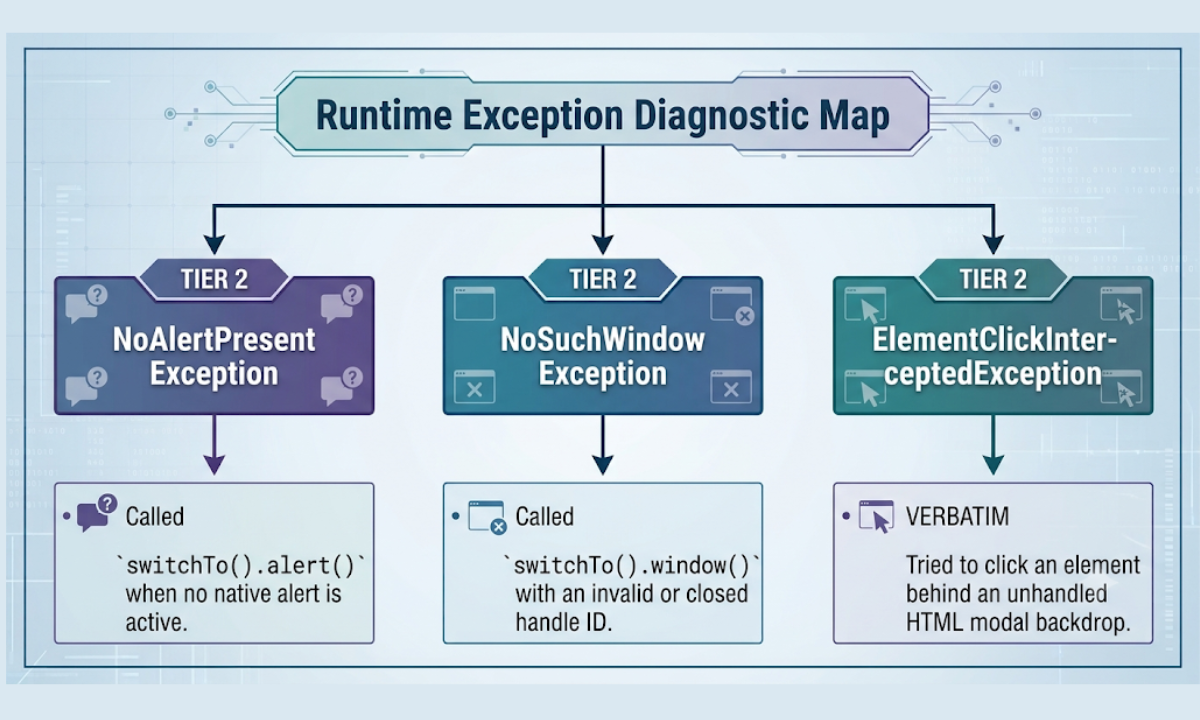
Accurately matching the visual popup to its underlying DOM structure, you eliminate trial-and-error context switching and build robust automation suites.
Practical Implementation Patterns & Synchronization Best Practices
One of the most frequent causes of intermittent test failure in automated regression suites is timing mismatch. As browser engines process network requests and JavaScript event loops asynchronously, an alert or window may not render instantaneously after a trigger click. Calling context-switching APIs without proper synchronization leads directly to NoAlertPresentException or NoSuchWindowException.
Implementing explicit wait conditions ensures your test execution synchronizes perfectly with the browser's real-time state.
Safe Alert Synchronization with WebDriverWait
Relying on hardcoded pauses like Thread.sleep() is an anti-pattern in test automation; it inflates execution time and fails whenever network latency spikes. Instead, leverage Selenium's WebDriverWait combined with ExpectedConditions.alertIsPresent().
To perform a safe Switch to an alert in Selenium without triggering a race condition, always wrap the call inside an explicit wait:
|
JAVA
|
|---|
|
// BEST PRACTICE: Explicit Wait with Automatic Focus Switch |
Safe Multi-Window Synchronization Pattern
When waiting for a secondary tab or OAuth popup to open, wait explicitly for the window count to increase before attempting handle retrieval:
|
JAVA
|
|---|
|
String originalWindow = driver.getWindowHandle(); |
Global Unexpected Alert Handling
In enterprise test execution, unexpected JavaScript alerts (such as session timeouts or server errors) can interrupt execution threads. Selenium provides browser capabilities to define how unhandled prompts are managed globally across your test suite:
|
Capability Flag |
Value |
Operational Behavior
|
|---|---|---|
|
unhandledPromptBehavior |
UnexpectedAlertBehaviour.ACCEPT |
Automatically accepts any unexpected native alert and continues execution. |
|
unhandledPromptBehavior |
UnexpectedAlertBehaviour.DISMISS |
Automatically dismisses unexpected alerts to prevent script blocking. |
|
unhandledPromptBehavior |
UnexpectedAlertBehaviour.IGNORE |
Leaves the alert open, allowing custom try-catch blocks to handle the exception. |
Combining explicit wait conditions with proper global driver capabilities ensures your test suites run reliably across local browsers, cloud grids, and CI/CD pipelines.
Why Choose Apponix Technologies for Your Automation Career?
Transitioning from manual software testing to advanced test automation requires more than memorizing API syntax; it demands hands-on experience building scalable, maintainable automation frameworks from scratch. Enrolling in a top-rated Software testing course in Bangalore at Apponix Technologies gives you the technical depth, framework design skills, and industry mentorship needed to master complex web automation challenges like alert handling, multi-window switching, and synchronization.
Apponix provides an immersive, project-driven learning environment designed to transform manual testers and aspiring engineers into industry-ready QA automation specialists:
-
Live Framework Construction with Java/Python: Build robust Page Object Model (POM), Data-Driven, and Hybrid automation frameworks using real-world e-commerce and banking applications.
-
Selenium Grid & Cross-Browser Execution: Learn to execute parallel test runs across distributed browser environments using Selenium Grid and cloud testing platforms.
-
Continuous Integration & Jenkins Pipelines: Integrate your test automation suites with Maven and Jenkins CI/CD pipelines to trigger automated nightly regression runs.
-
1-on-1 Resume Engineering & Mock Interviews: Receive personalized resume polishing to pass recruiter filters, along with scenario-based technical mock interviews covering live coding, framework design, and exception debugging.
-
Direct Placement Connections & Career Support: Tap into Apponix’s vast hiring network across Bangalore's major tech parks, connecting you directly with hiring managers seeking qualified automation talent.
Combining deep technical rigor with hands-on lab access and dedicated career guidance, Apponix bridges the gap between basic script writing and enterprise-grade automation engineering, empowering you to step into senior QA roles with complete confidence.
Conclusion
Choosing the correct Selenium switching API boils down to understanding the underlying architectural structure of the popup you encounter on screen. When faced with an unexpected overlay or secondary window during test execution, always inspect the element first using Browser Developer Tools. If the popup elements appear within the HTML DOM tree as styled <div> tags or modal dialogs, do not attempt context switching; simply wait for element visibility and interact with them using standard WebElements.
When a popup fails to appear in the HTML DOM and freezes page interaction with a browser-native message box, you are dealing with a JavaScript alert that requires driver.switchTo().alert() synchronized via explicit waits. Finally, if the interaction opens a separate browser tab or window containing its own full DOM tree, retrieve the active handle set using driver.getWindowHandles(), shift execution context to the target child tab, and remember to explicitly restore focus to the parent window handle once the child operation concludes.
Following this systematic decision workflow eliminates trial-and-error scripting, prevents unexpected runtime exceptions, and ensures your automated regression suites execute with maximum stability.
Reference:
1. https://www.guru99.com/alert-popup-handling-selenium.html
2. https://www.browserstack.com/guide/handle-multiple-windows-in-selenium

Apponix Academy
Apponix Academy